
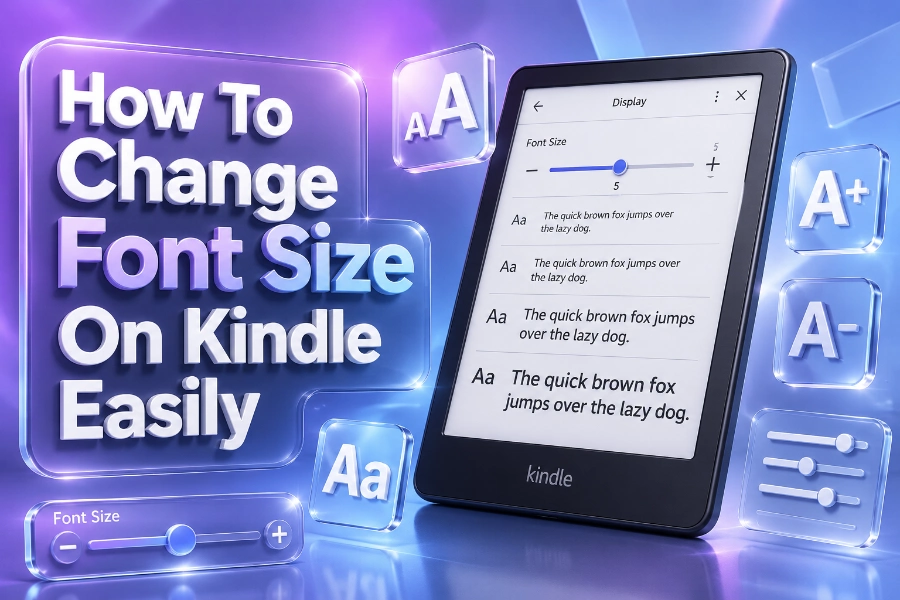
Learning how to change the font size on your Kindle is one of the most useful skills you can learn if you want a more comfortable reading experience on your device.
Whether you read novels every night, study digital textbooks, or enjoy magazines during travel, adjusting the font settings can reduce eye strain and improve readability instantly.
Kindle devices and the Kindle app both offer flexible customization features that allow you to personalize text size, font style, spacing, and screen appearance in seconds.
Why Kindle Font Size Settings Matter
Reading comfort plays a major role in how long you stay focused on a book, and Kindle devices are designed to support different reading preferences. Small text may look sharp to some readers, but it can quickly become tiring during long reading sessions or in dim lighting conditions. Larger fonts improve visibility and help you maintain a relaxed reading posture without constantly zooming in or squinting at the screen.
Modern Kindle devices include advanced accessibility tools that make digital reading easier for users of all ages. Many readers use Kindle because they can customize nearly every visual setting, rather than being stuck with the default appearance of printed books. Some readers even use tools that build stylish fonts for social media in seconds because personalized typography makes digital content feel more enjoyable and visually appealing across devices.
Another advantage of changing font size on Kindle is improved concentration while reading. Text that feels too cramped can slow down your reading speed and reduce comprehension during longer sessions. Proper spacing and readable fonts create a smoother experience that keeps you engaged from the first chapter to the last page.
Benefits Of Larger Kindle Fonts
Larger fonts help reduce eye fatigue during nighttime reading sessions. They also improve readability for users with vision difficulties or readers who spend several hours reading every day. Kindle’s flexibility allows you to increase text size without damaging formatting or losing your place in the book.
How To Change Font Size On Kindle Devices
Changing font size on a Kindle e-reader takes less than a minute once you understand the steps. Open any book on your Kindle device and tap near the top of the screen to reveal the reading toolbar. Select the “Aa” menu to access font and layout settings where you can increase or decrease the text size using the slider or plus and minus buttons.
Most Kindle devices also support pinch-to-zoom gestures inside books. Spreading two fingers apart increases the font size, while pinching inward reduces it instantly without opening the settings menu. This shortcut makes adjustments faster when you want immediate changes while reading.
Kindle Paperwhite, Kindle Oasis, and newer Kindle models include additional customization features beyond text size. You can change font boldness, line spacing, margins, orientation, and even switch between dark mode and standard mode depending on your reading environment. These small adjustments work together to create a highly personalized reading setup.
Common Kindle Font Settings
You can customize several important settings on Kindle devices, including:
- Font size
- Font family
- Boldness level
- Line spacing
- Margin width
- Screen brightness
- Page orientation
How To Change Font Size On Kindle App
The Kindle app on smartphones and tablets uses slightly different controls compared to dedicated Kindle e-readers. Open a book inside the Kindle app and tap the center of the screen to display the menu options. Tap the “Aa” icon and adjust the text size slider until the words appear comfortable for your eyes.
Tablet and smartphone users often prefer larger fonts because smaller mobile screens can make reading difficult during extended sessions. Kindle apps for iPhone, iPad, and Android also allow you to switch fonts, increase contrast, and adjust page color for better visibility. These options help you maintain consistent reading comfort even when switching between devices.
Writers and digital readers who enjoy experimenting with online publishing tools often read about how content generators work how to use them effectively because understanding digital formatting and readability can improve both content creation and screen-based reading experiences. The same principle applies to Kindle formatting because readable typography directly affects engagement and user satisfaction.
The Kindle app also remembers your preferred settings automatically. Once you choose your ideal font size, the app usually applies those settings across future books unless a specific title uses limited formatting options. This feature saves time and keeps your reading experience consistent across multiple genres.
Kindle App Reading Tips
Reading on mobile devices becomes easier when you increase brightness slightly during daytime use. Nighttime readers often benefit from warm backgrounds and slightly bolder fonts to reduce glare and improve focus. Small adjustments can dramatically improve long-term reading comfort.
Best Font Styles To Use On Kindle
Font size matters, but font style also affects readability and comfort. Kindle devices include several built-in fonts such as Bookerly, Helvetica, Futura, Open Dyslexic, and Amazon Ember. Each font offers a slightly different reading experience depending on spacing, character shape, and visual clarity.
Bookerly remains one of the most popular Kindle fonts because it was specifically designed for digital reading. The font improves readability while maintaining a traditional book-like appearance that feels natural during long reading sessions. Many users choose Bookerly with medium or large text sizes because the combination reduces strain without looking oversized.
Open Dyslexic is another important option for readers with dyslexia or tracking difficulties. The weighted letter design helps distinguish characters more clearly and improves reading flow for many users. Kindles accessibility features continue to attract readers who need greater control over typography and visual presentation.
Digital reading trends continue to evolve as readers spend more time consuming online content and ebooks. Many professionals who research what is an AI writing assistant and how is it beneficial also pay close attention to readability because typography and content presentation strongly influence user engagement and reading retention across digital platforms.
Recommended Kindle Font Combinations
Many readers prefer these settings for everyday reading comfort:
- Bookerly with medium font size
- Amazon Ember with bold level two
- Open Dyslexic with larger spacing
- Dark mode with slightly increased text size
Troubleshooting Kindle Font Size Problems
Sometimes Kindle font settings may not change correctly due to book formatting restrictions or outdated software. Certain PDF files and fixed-layout ebooks lock font sizes because the content is designed with static formatting. In those cases, zooming may work better than standard text resizing tools.
Restarting your Kindle device can solve many temporary font adjustment problems. Hold the power button for several seconds and restart the device before reopening the book. Software updates also improve font rendering and performance, so keeping your Kindle updated helps prevent display issues.
Some readers mistakenly believe their Kindle settings are broken when only one book refuses to resize properly. This usually happens with image-heavy textbooks, comics, scanned documents, or PDFs that use fixed formatting. Testing another ebook can quickly confirm whether the problem is related to the device or the specific file.
When Font Settings Do Not Work
Try these troubleshooting steps if text size refuses to change:
- Restart the Kindle device
- Update Kindle software
- Open another eBook for testing
- Remove and re-download the book
- Check whether the file is a PDF
Best Reading Settings For Eye Comfort
Choosing the right Kindle settings can make reading more enjoyable and less tiring over time. Larger text sizes reduce eye movement strain because your eyes can recognize words faster without intense focus. Balanced line spacing and comfortable margins also help your brain process information more naturally during long reading sessions.
Lighting conditions should influence your Kindle settings as well. Bright outdoor environments often require slightly bolder fonts and increased brightness, while dark rooms benefit from dark mode and softer lighting. Kindle devices are designed to adapt easily to changing environments without sacrificing readability.
Experts generally recommend adjusting your Kindle settings based on reading distance and screen size instead of copying someone else’s preferences. A Kindle Paper white held close to your face may need smaller text than a Kindle app running on a large tablet across a desk. Personalized settings always provide the best results because reading habits differ from person to person.
Smart Kindle Customization Tips
You can improve readability further by combining multiple settings together. Medium font sizes paired with wider line spacing often feel smoother than extremely large text with cramped formatting. Experimenting with several combinations helps you discover the setup that feels most natural during daily reading.
Conclusion
How to change font size on Kindle becomes simple once you understand where the customization settings are located on your device or app. Kindle offers flexible reading tools that allow you to personalize text size, spacing, brightness, and font style for a smoother and more comfortable experience. Whether you prefer small clean typography or large accessible text, the right settings can transform your reading sessions and help you stay focused for longer periods without discomfort.
The best Kindle reading experience usually comes from combining several settings instead of changing only the text size. Larger fonts, improved spacing, balanced brightness, and suitable font styles all work together to reduce eye strain and improve readability across different environments. Once you spend a few minutes adjusting your Kindle preferences properly, reading digital books becomes faster, easier, and significantly more enjoyable every day.